Find your seat and walk to it
Open your ticket, see your seat on the plan, and follow the way in from your gate to your chair.
Checked against Durbar on
If your ticket has a seat, Durbar shows you where it is and how to get there. You don't need an account or an app: it opens in your phone's browser.
Open your seat
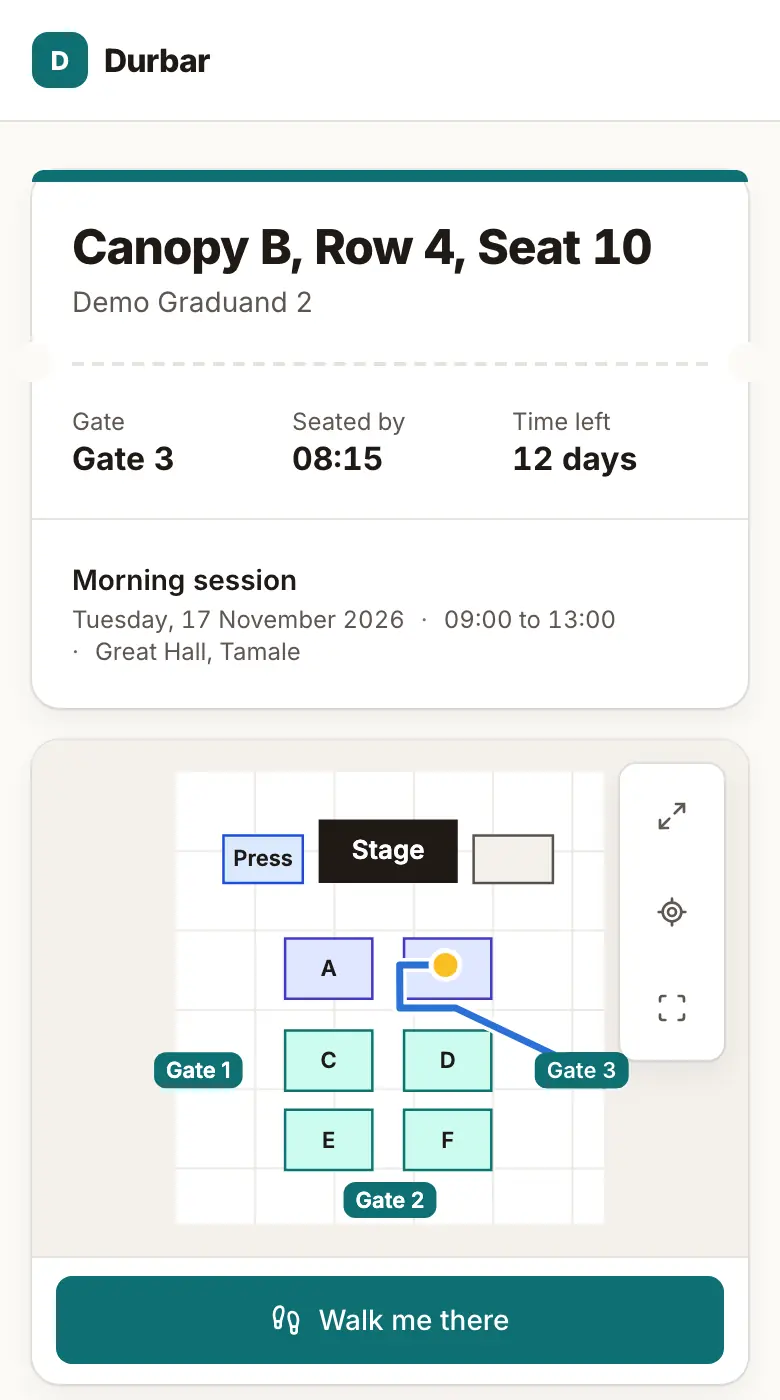
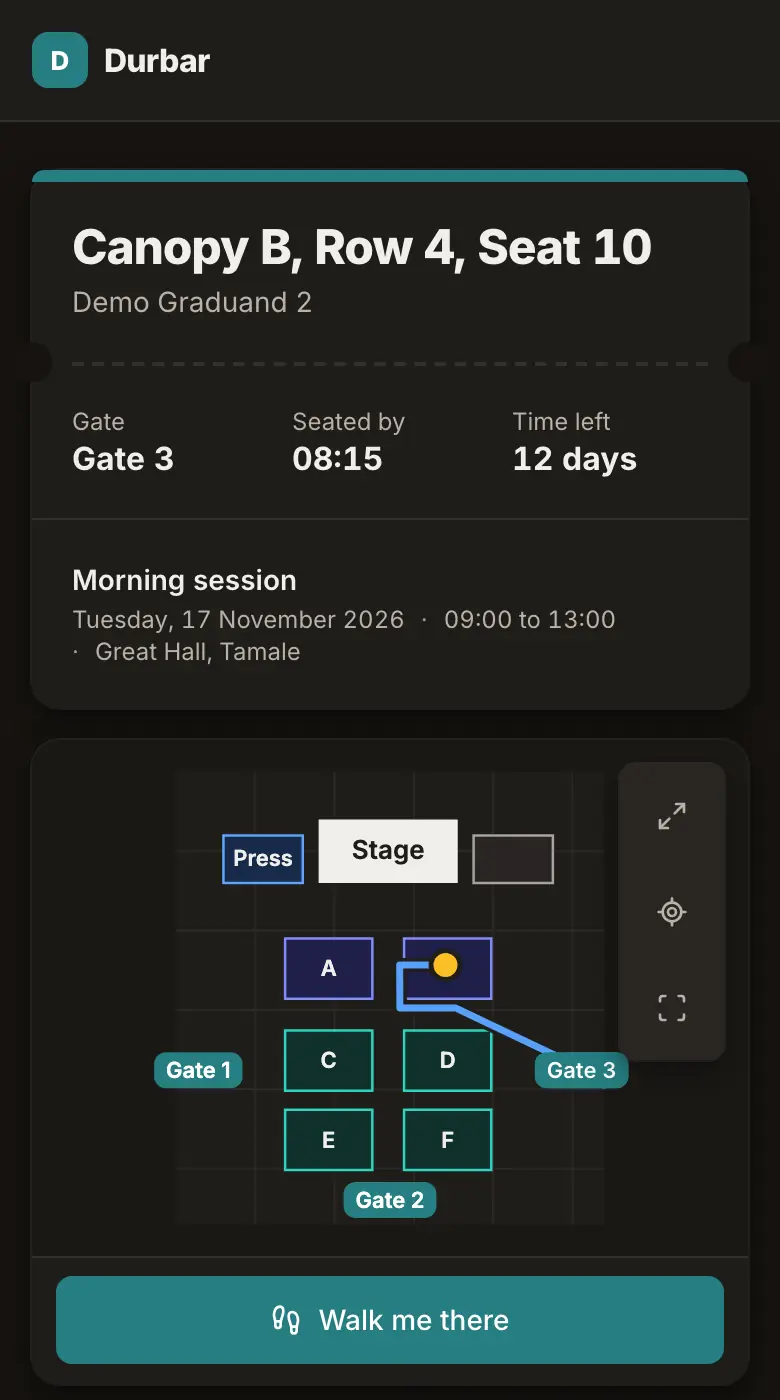
- Open your ticket and choose Find my seat. A guest's ticket says Find this seat. If the organizer sent you a seat message, its link opens the same page.
- Read the top of the page: your seat, the Gate to use, and the time to be in your seat by.
- Under Your way in, follow the numbered steps. The plan draws the same way in.
- Choose Show the whole plan to look around, and Show my seat to come back.
Walk there
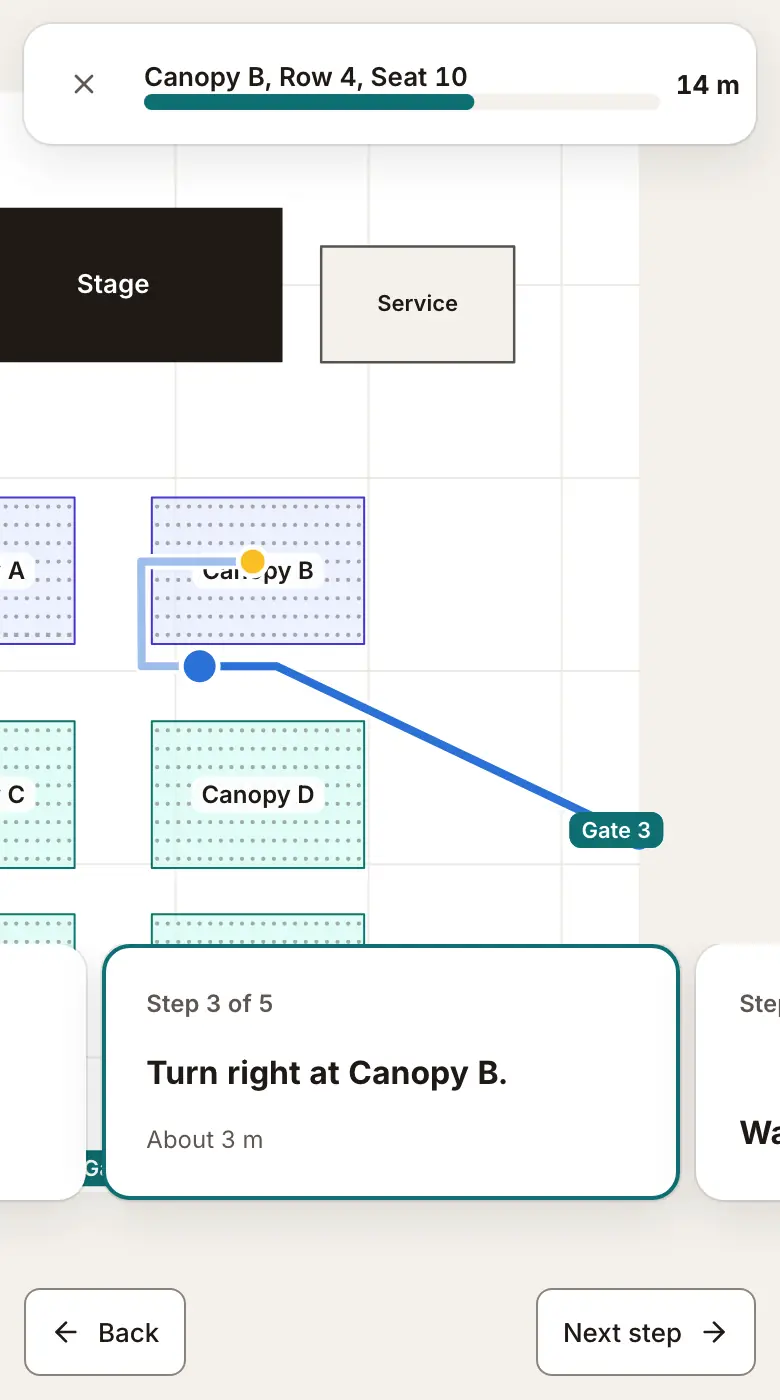
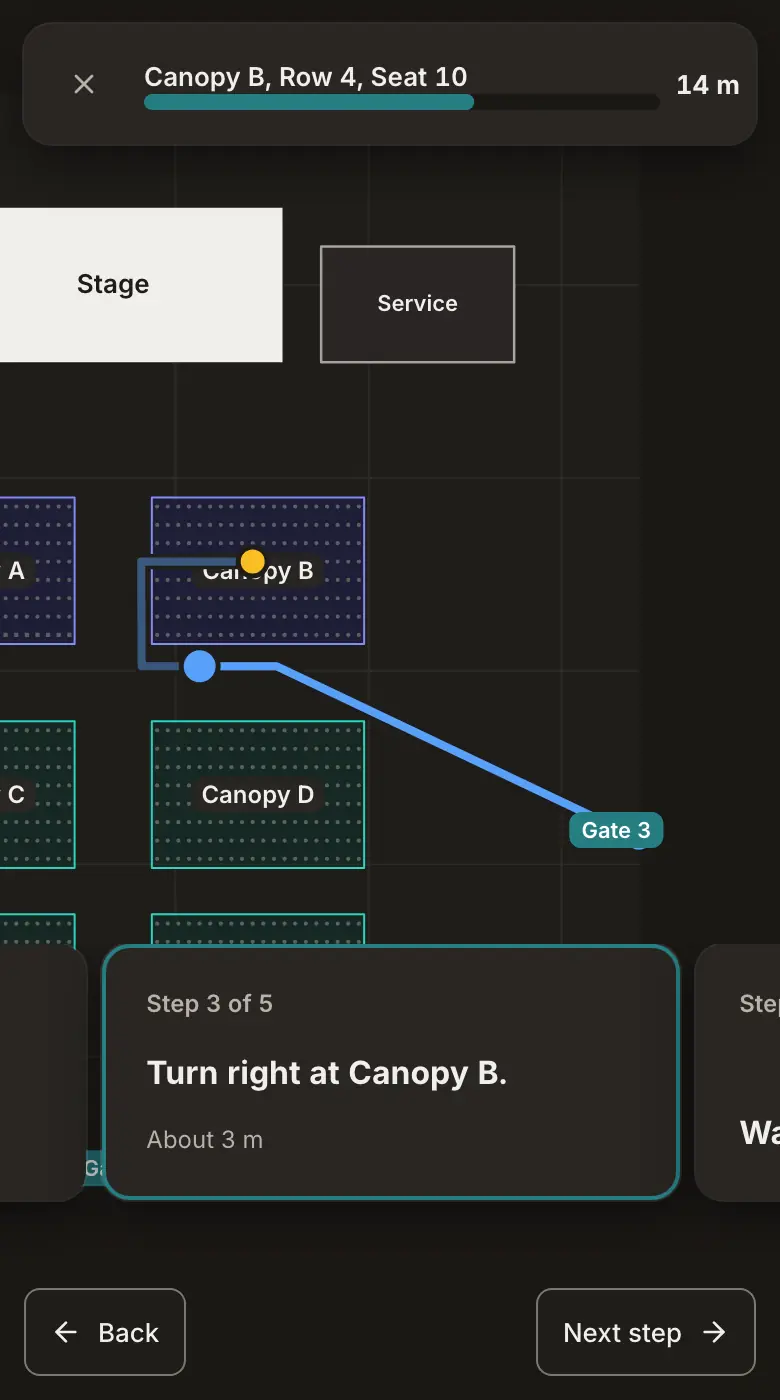
Choose Walk me there. The plan follows you step by step from the gate. Use Next step at your own pace, or Pause the walk to stop and look. When you reach it, choose I'm at my seat. End the walk takes you back at any time.
If you can't manage steps
Turn on Step-free route for a step-free gate and wider ways, for a wheelchair, a walker or a pram. If the plan already has only one way in and it has no steps, the page says This way in is already step-free. If the organizer knows about your access need, the switch starts on.
With no signal
Ceremony grounds are often short of signal. For a graduation, open your seat once while you're connected. The page says Saved on this phone. It opens with no signal. After that it opens without a connection, and tells you when the copy was saved.
If you don't see a seat
- Your seat is on its way: seats haven't been given out yet. You'll get a message when yours is ready.
- You don't have a seat yet: ask the organizer. Your ticket still works at the gate.
- Your place may be a standing area or another part of the grounds. The page says which, and offers directions when it's somewhere else.
- If the organizer has no drawing of the place, you see your seat in its block and the steps, without the walk.
- If an old link doesn't open, use the newest message. Only the newest seat link works.
Ready to try it?
Sign in to the console with a code sent to your phone or email. The first code creates your account.